

Hello Readers, hope you’re well.
Following on from my previous post on Digital Signage for Microsoft Teams Rooms, this post is the second in a series on each of the providers that work to provide digital signage to Microsoft Teams.

I must admin that Vibe isn’t a name I had heard of before Microsoft announced they were adding support for digital signage on MTR. Microsoft announced some launch partners for digital signage with Appspace and Xogo.
Microsoft also announced they would support URL based digital signage. It is possible to publish a playlist from Appspace to a URL and use it, but as soon as you try to use it, you get an error on the screen telling you to register the device to Appspace. This is because Appspace don’t have a way to see how many devices are using the URL for a playlist. So that idea was out. I still wanted to test URL based digital signage so started to research it.
How to use URL based digital signage
I thought I would start here. Microsoft give guidance on how to use a URL for digital signage on your MTR.
To ensure the web application loads successfully on your Teams Rooms device, the URL must meet the following requirements:
- Has a valid web URL format.
- Begins with “https”.
- Accessible within a browser InPrivate window without requiring authentication or permission from the resource account.
- Loads within an iframe that runs in sandbox=”allow-scripts allow-same-origin” environment. For more information, see CSP: frame-ancestors – HTTP | MDN (mozilla.org).
I actually tried my blog and that worked. However it wasn’t particularly exciting as digital signage. I thought about trying to create a page that would be good as signage but decided to contine researching alternatives. This is when I stumbled on a support post on the Vibe website on how to use a Vibe URL as the digital signage in MTR. So I immediately had a look and reached out to them to see if I could get a trial account to start playing.
This isn’t a paid endorsement of Vibe or their services. Just a review.
Get started with Vibe
Once you get your paid license you’ll get access to an Admin site with a subdomain. For example https://domain.vibe.fyi/portal. This takes you to the slide editor

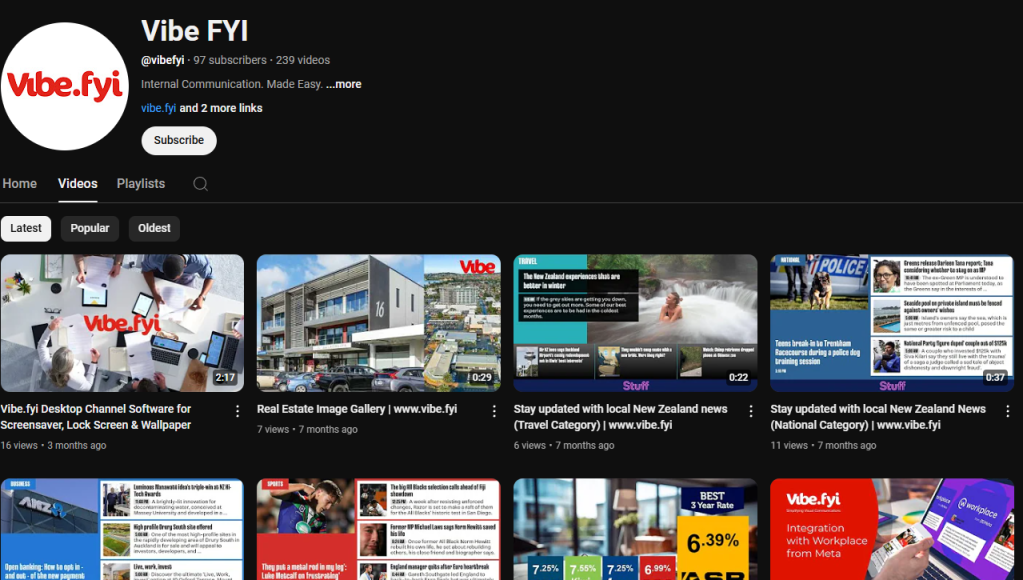
I would recommend you watch the product tour. Trust me, there’s a lot to Vibe. It is intuitive, but only really after the tour. I would also recommend watching some of the training videos. They have a YouTube channel with a lot of great content. Vibe FYI – YouTube
Building your playlist
I’ll be the first to admit that I’m not an expert at Vibe. I’ll definitely need more time to see and use everything that is possible. So I’ll keep it relatively simple.
You start with adding a slide. Vibe has a huge template library to start with and get you going quickly.

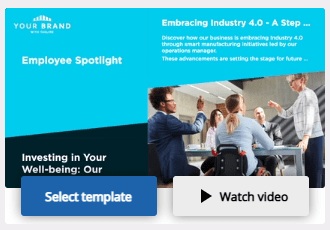
When you hover over one you can either select it or watch a video on how to use that template type.
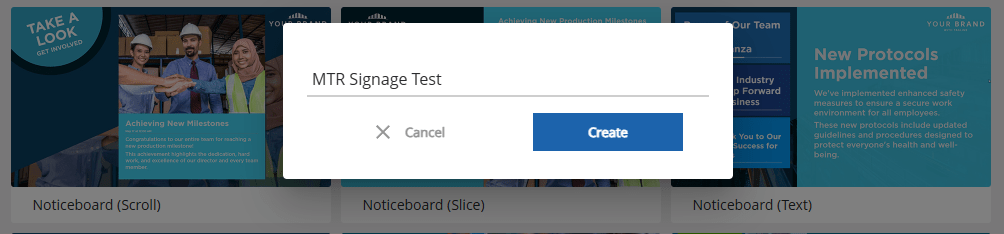
For this example I chose Noticeboard (slice). No particular reason other than it seemed a good place to start. Give it a name and click create.
From here you have a bunch of ways to customise the new slide

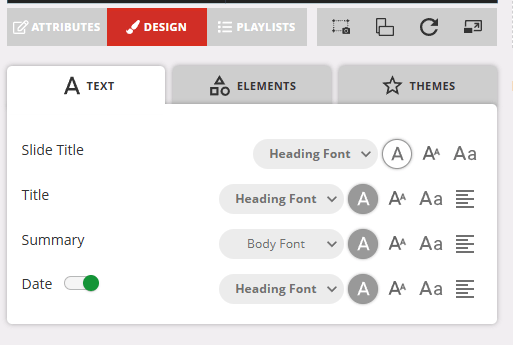
If you click on Design you can edit the text based defaults like fonts and sizing
The Elements where you edit the major page graphics

and the Themes where you edit individual graphics like logos

to add your company logo you can literally drag an image from explorer into the box. The preview shows you what it looks like so far.

Next I added a background image in the content in use. Again, drag and drop or explore to find your image

Now you can add content. This opens up a dialogue where you can add images

you can now choose between stock images or you can upload new, or choose from stuff you already added.

once you have chosen your image you can scroll down for options on scheduling when that image appears.

This is how you start to build up the slide show

you can also add the slides you’re creating to an existing playlist. I’ll get to playlists in a bit. Toggle one of these to add the slides with the content you just created to one of these playlists.

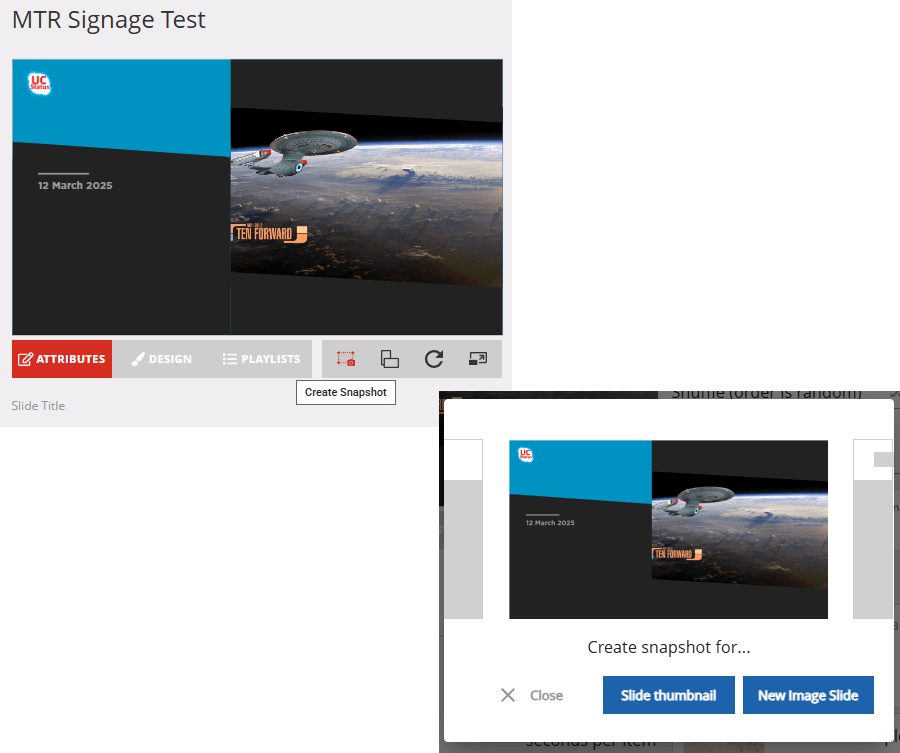
Everything you do is saved in real time. But before you finish it is a good idea to take a screenshot to use as the thumbnail in the Slides gallery
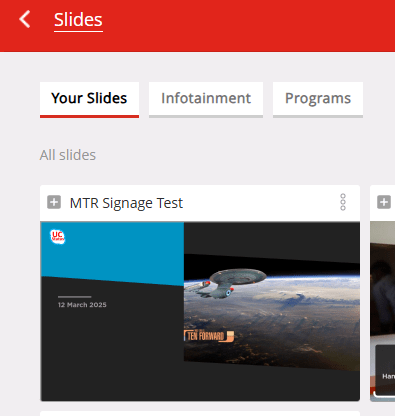
This brings me on to playlists. Start with creating a new playlist
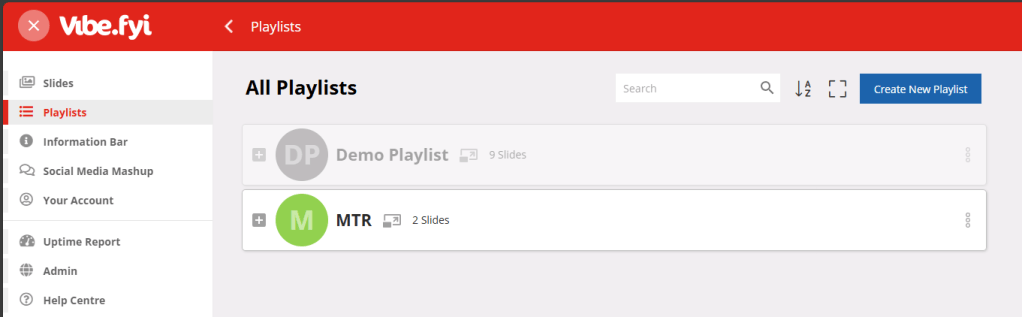
A playlist is a list of slides to use as the digital signage content on your player. In this case an MTR. Click on Create new playlist and give it a name. I created a playlist called MTR. The stuff on the left is all of the content that’s there to start with, plus any slides you added. There are different content types from programs and infotainment and simple photocards.

if you want to include one of the slides in the playlist just hit the arrow. You can also preview or edit one of the slides by hitting the three dots menu

I’m going to edit the weather slide. Weather slides are always great to add to digital signage.
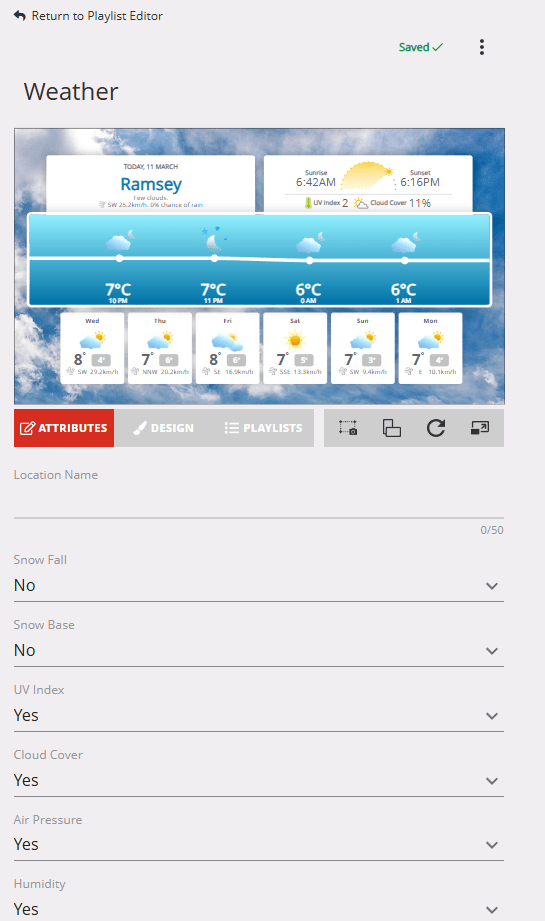
To change the location you need to know the latitude and longitude. It would be good if you could just search for a location. But it is easy enough to get the info from the internet. I used https://www.latlong.net/. You also have to name the location in the Location Name field. Then decide what attributes to include for the location.
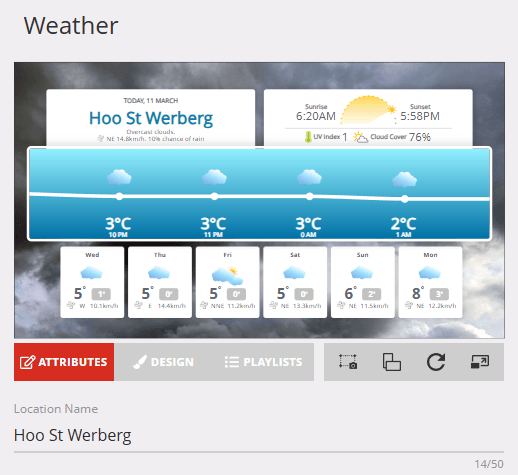
Now just keep adding and editing content from the different types of slideware.
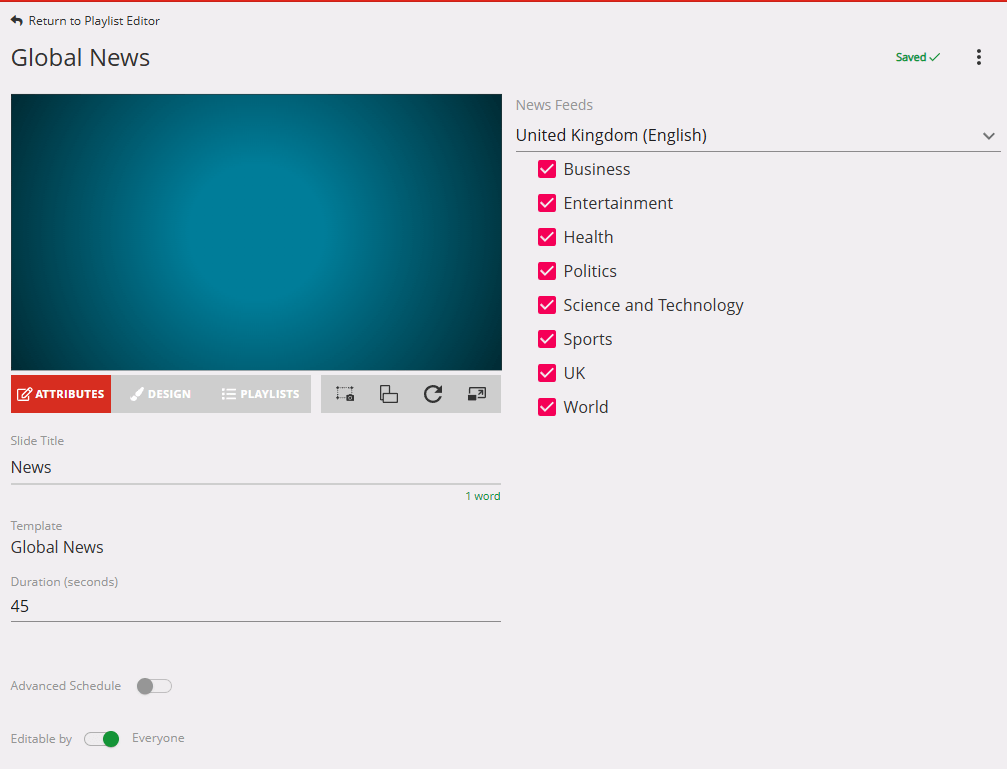
Now that you have all of your slides in the playlist you can generate the the URL

Generate the URL
You have to open the admin console https://domain.vibe.fyi/Admin/Console/Default.aspx or just click on admin in the side bar


click on licenses. This opens up the new location page.
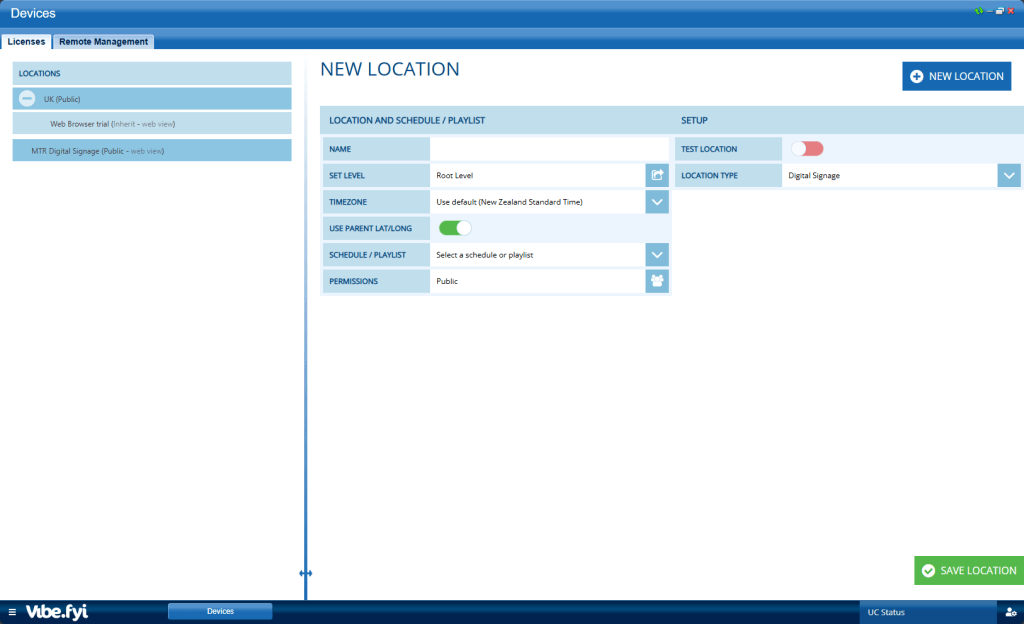
- Choose a name for the location
- Select the timezone
- Select the playlist you want to play
- and choose web browser as the location type

Save the location and this will generate the URL

To be clear I have obviously changed the URL that was generated. But you copy the URL from the location and use it in the next section when you add your custom digital signage source.
How do you add your new Vibe playlist to Teams Rooms?
Once you have the URL to use for your custom digital signage source you go to the Pro Management Portal (PMP) here https://portal.rooms.microsoft.com/ and expand Settings and click on Digital Signage

You should have a blank slate like this. Toggle Digital Signage to On

Click on Add Source to add a source

Give your source a unique name

Choose Custom as the source and enter the URL from the playlist in Vibe

After that you acknowledge some terms and enter your email address. Then review and finish, click submit.

Once you have your signage content you can assign it to a room. Go back to your list and select the one you just created and click assign to rooms.

Make sure the correct source is selected and click next

Choose your preferences and click next

Start typing to search for rooms or groups of rooms. Of simple expand the list to show all of your rooms

Scroll down to show your room groups

Once you have selected the room or group of rooms to assign that playlist click next

You can choose between apply now or during a maintenance window. If you are doing this during the day you probably want to choose the maintenance window. What happens is this setting queues on the room and during the nightly reboot scheduled task, the change is implemented. You won’t see the digital signage until tomorrow morning.

Once you have made your choice, review and finish and click submit.

Once the digital signage playlist is made live you’ll see the tap to get started overlay on your touch console and the signage on the front of room display
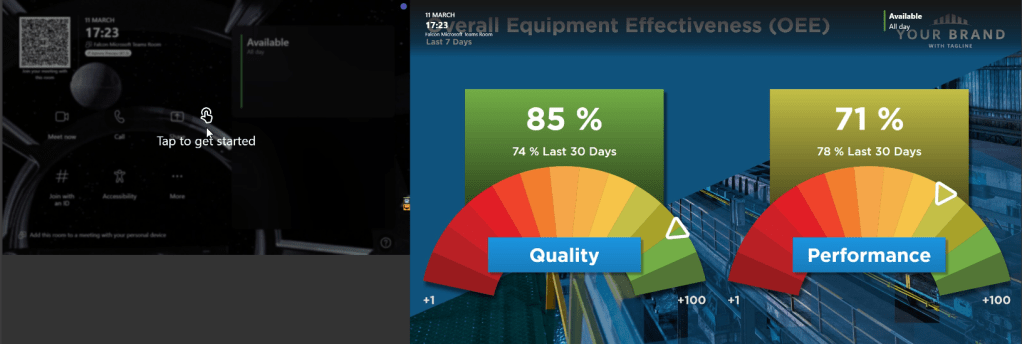
Summary
To sum up. I think Vibe is a great choice for digital signage in general. You can quickly and easily create very dynamic signage content with overlays and logos, photos and videos, dynamic content from the built in or uploaded library or an external source. You can even add Power BI dashboards and pull in dynamic content from the web, social and a whole lot more. You can schedule content to appear during certain periods or days, tie the content to a location or theme and even add emergency information as a temporary card that takes over the content. I’ve barely scratched the surface on what you can do. I did have a call with an account manager and he showed me a bunch of stuff that blew my mind. He’s obviously got a lot more experience with it.
The good news is they tell me that they are working with Microsoft to be added to the certified partners list, no timeline to share unfortunately. However I don’t think you lost anything by using the custom URL as an option.
More information
- https://www.vibe.fyi/
- Vibe’s Digital Signage Pricing Plans
- https://support.vibe.fyi/portal
- https://support.vibe.fyi/portal/en/kb/articles/microsoft-teams-room-mtr-setup-guide
- https://domain.vibe.fyi/portal
- https://domain.vibe.fyi/Admin
Discover more from
Subscribe to get the latest posts sent to your email.
