

Hello Readers, hope you’re well.
Hot off the heels of my last post on Digital Signage for Microsoft Teams Rooms, this post is the first in a series on each of the providers that work to provide digital signage to Microsoft Teams.

I must admin that XOGO isn’t a name I had heard of before Microsoft announced they were one of the certified providers of digital signage at launch. I haven’t been able to find much online besides a PO box in Washington. According to LinkedIn they were founded in 2015, headquartered in Vallyford Washington and have between 11 and 50 staff.
I can assure you they are a real company. I reached out to them when I started testing digital signage in the Microsoft TAP process of certifying the feature. They have been very accomodating and have provided me with a trial of their premium license so I could have a good play with everything. They also provided me with early documentation ahead of the feature going GA several weeks ago. Their support has been excellent.
a few facts from them, about them
- They have clients in 40 countries
- key clients include Microsoft, Nissan, Trelleborg, Outback Steakhouse, McDonald’s and Holiday Inn
- Their pricing model starts with freemium and their Pro licenses are less than 1/2 the price of competitors
- They offer free technical support to all of our customers (free and pro alike)
This isn’t a paid endorsement of XOGO or their services. Just a review.
Anyway, now that Microsoft has officially launched digital signage for Teams Rooms and announced XOGO as one of the launch partners, the cat is very much out of the bag.
XOGO services
If you go to the XOGO website at https://xogo.io you’ll see that they are cloud hosted digital signage platform which plays your graphics, video files and web content as digital signage. Content and playlists can be scheduled to play on the days and the time you want. They sell mini players which turn TV or commercial displays into digital signs.
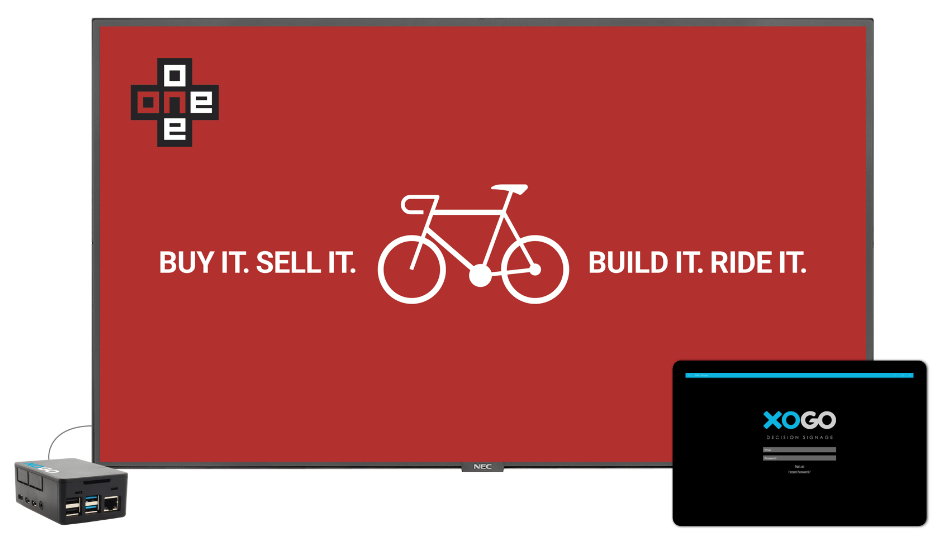
They have a free application called XOGO Player which runs on a number of devices including iPads and Android tablets, Raspberry Pi, LG TVs and more.

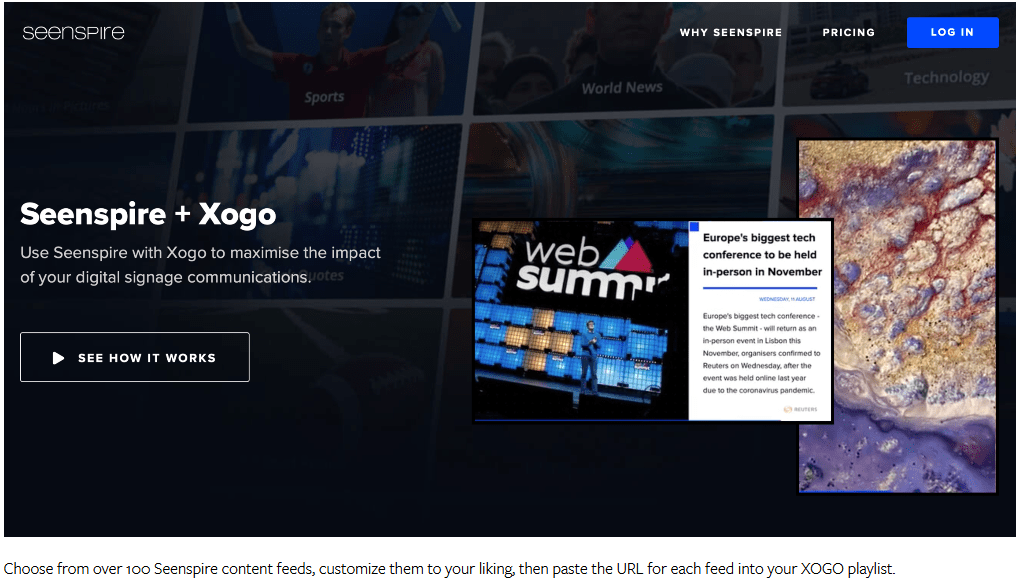
They also partner with a number of external services and design tools including Seenspire…
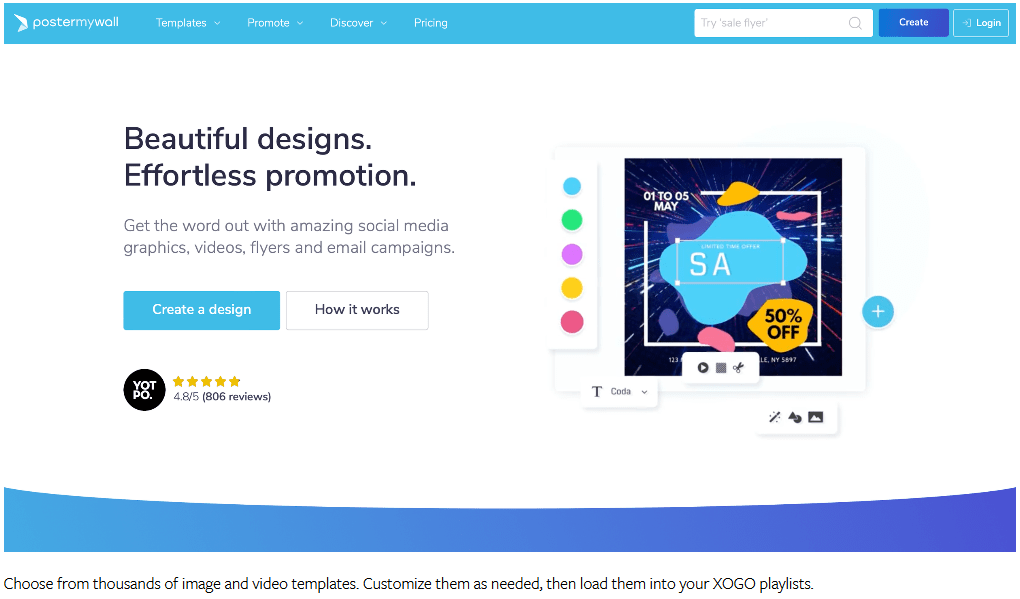
…and PosterMyWall
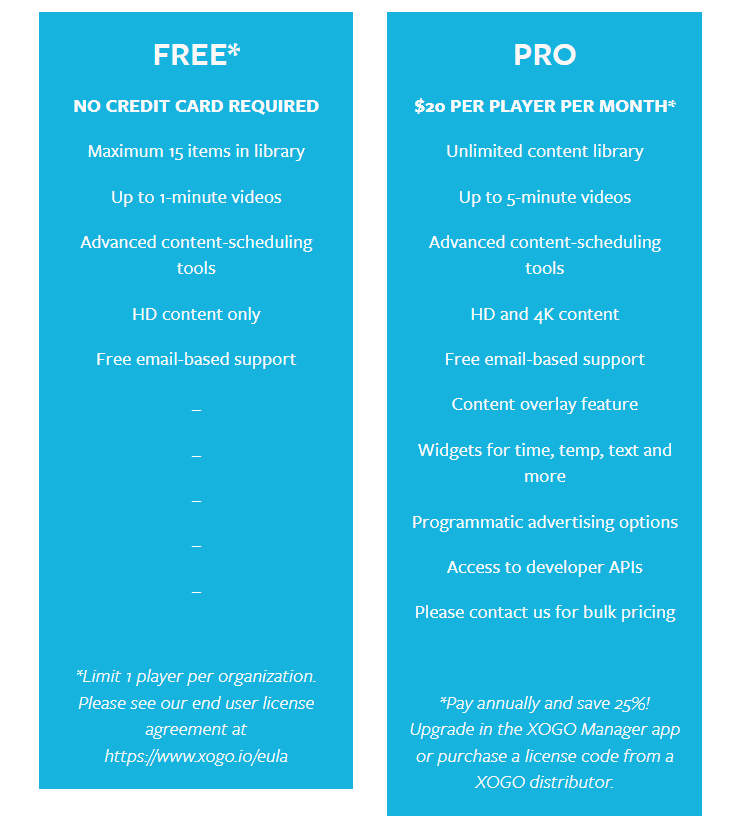
Pricing is listed on their site XOGO Digital Signage Pricing. They offer a Freemium service with support for a single player and a limited feature set. I’ve been playing with the Pro featureset as part of my trial.
XOGO for Microsoft Teams Rooms
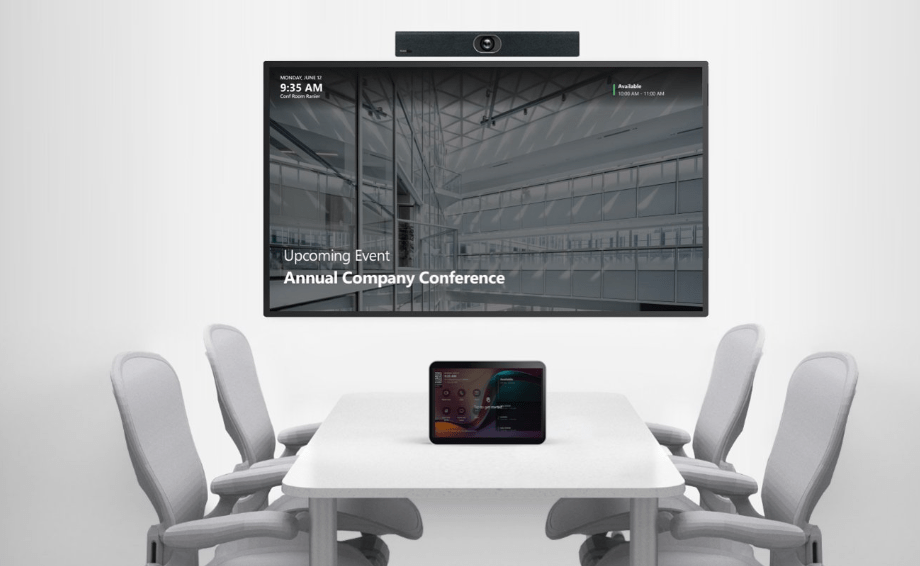
XOGO for Microsoft Teams Rooms is a new service which plays through the XOGO player app which is installed on a Microsoft Teams Room on Windows compute. It is offered for Windows MTR only right now. But I have heard from Microsoft and others that it will come to Android in Q1 of CY2025. I’ll update the post when I know more or it launches on Android.
XOGO offers a afull set of instructions for the setup of digital signage for Teams Rooms.
The requirements are simple. You need a Xogo account with at least the free license, a Microsoft Teams Room on Windows device running the latest MTR app and an account with the Teams Room Pro license. You also of course need access to the Teams Room Pro Management Portal with either the Global admin or Teams Rooms Pro Manager role.
This section is from the main post on Digital Signage for Microsoft Teams Rooms
How do you do it?
Start in the PMP here https://portal.rooms.microsoft.com/ and expand Settings and click on Digital Signage

You should have a blank slate like this. Toggle Digital Signage to On

Click on Add Source to add a source

Give your source a unique name

, so I’ll show you the XOGO side and what it looks like in PMP. Start with the add source again, and choose XOGO as the provider.

- In XOGO Manager https://manager.xogo.io/ click on the person icon in the top right
- open your company profile
- go to the Company tab
- In the lower half of the screen you’ll see “For Microsoft Teams Customers”. Click Generate Integration ID
- Copy the ID below that box

6. and paste it into the PMP form and click validate

After that you acknowledge some terms and enter your email address. Then review and finish, click submit.
Now for Content
You need to create Playlists to use as signage on your Teams Rooms. First though you need to upload assets to your library. In Manager go to Library and click add new and media upload.
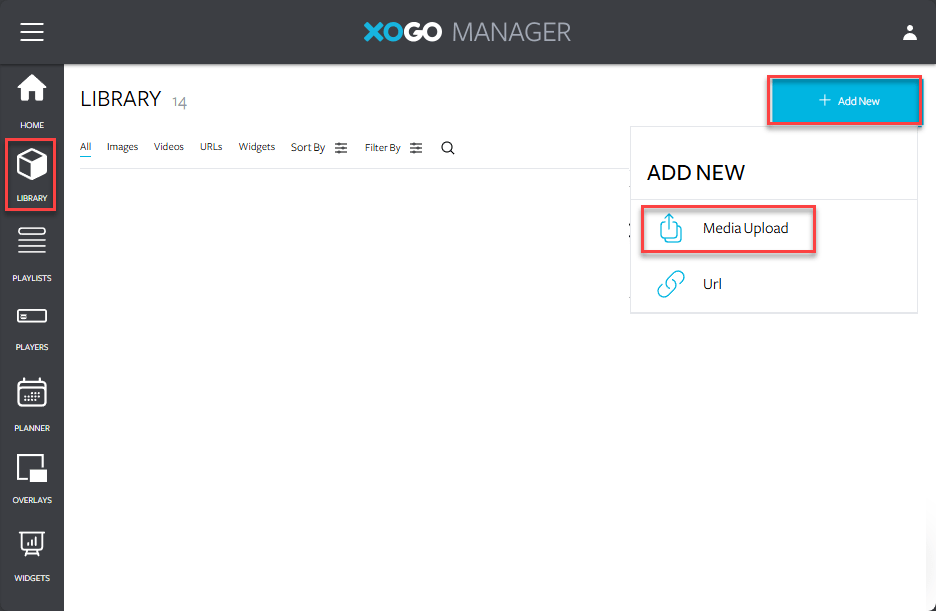
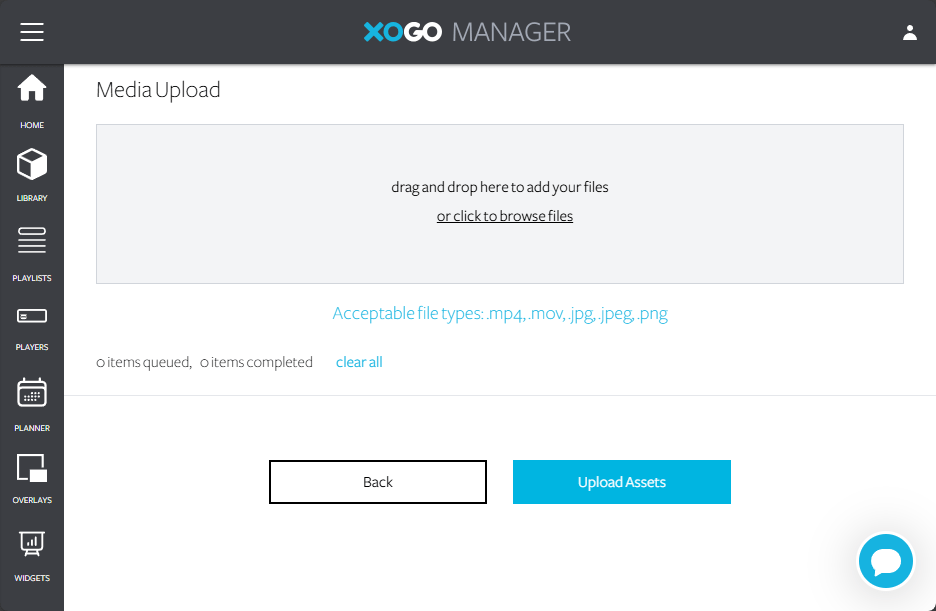
You can upload .mp4, .mov, .jpg, .jpeg and .png. You can either open your Explorer window or photo editor (like Snagit) and drag and drop, or simply browse and upload from there.
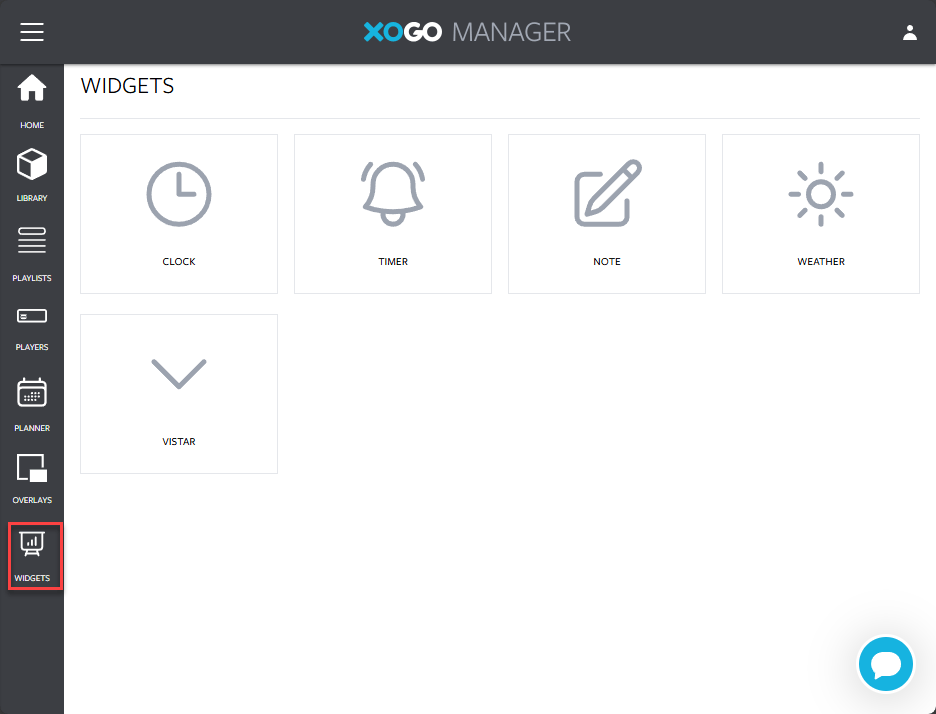
You can also add canned dynamic content in the form of widgets including specific clocks, countdown timers, weather and notes.
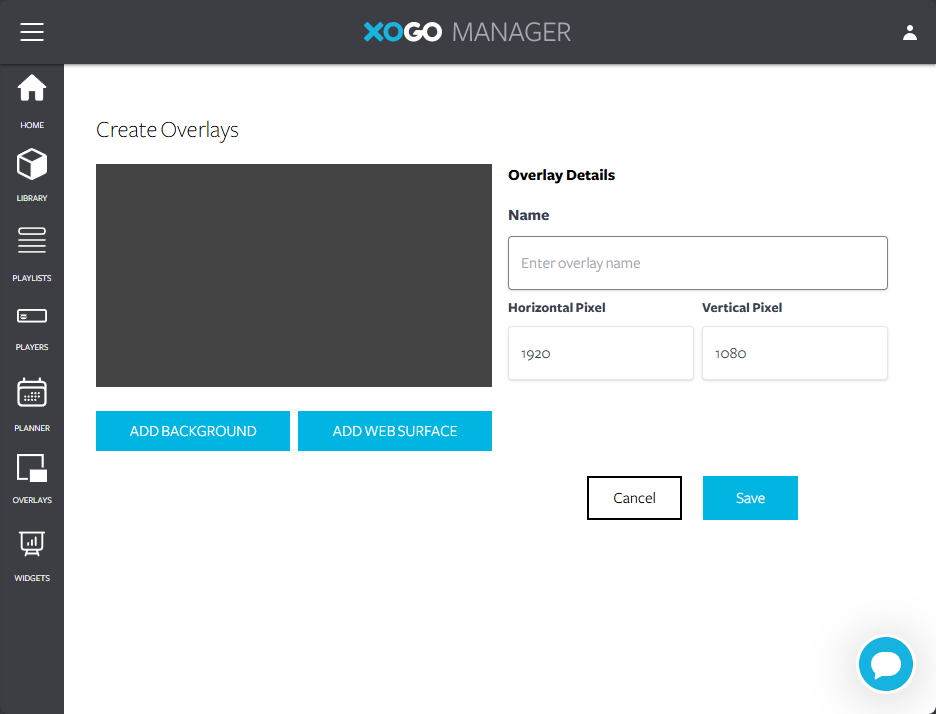
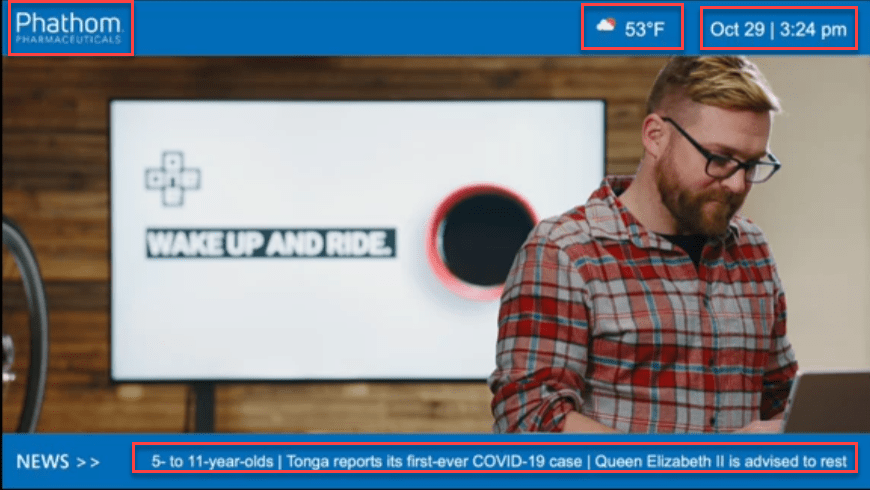
Additionally you can add overlays which can be as simple as your logo in the corner over a background or more complex with web services pulling time and date, news feeds and weather from external sources, and arranging them on a page.
Here’s an example from the XOGO Youtube channel. The Red boxes show the overlayed content.
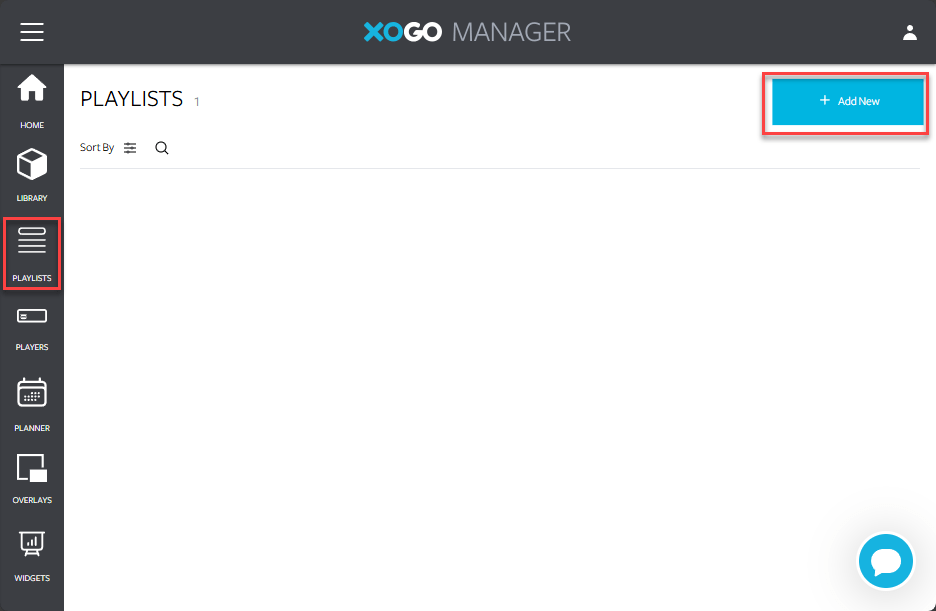
Once you have some assets in your library you can create a Playlist. Go to Playlists and Add New
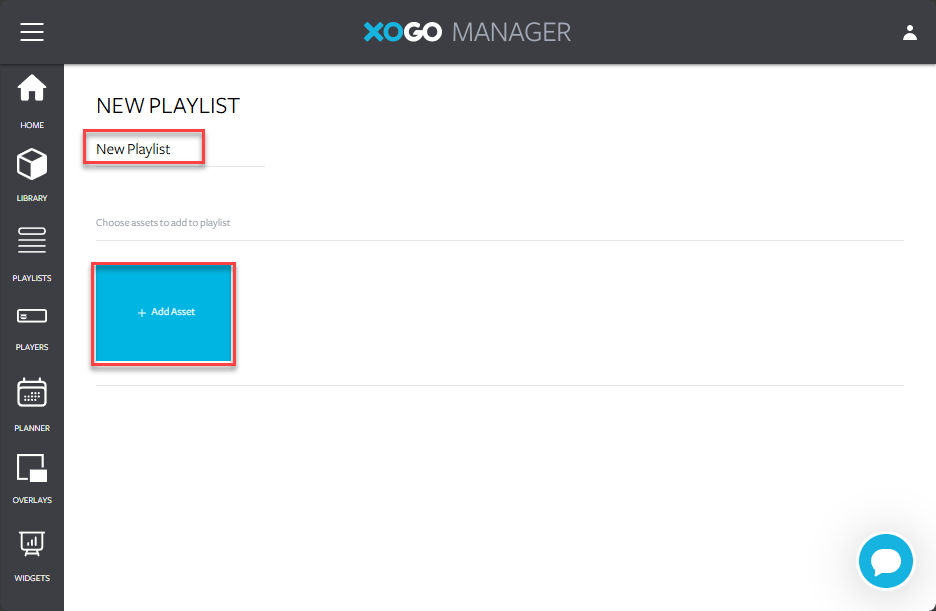
Give it a name and add assets from your library.
you can filter by type or stay with all and select one or more assets to add to the playlist and click create when done

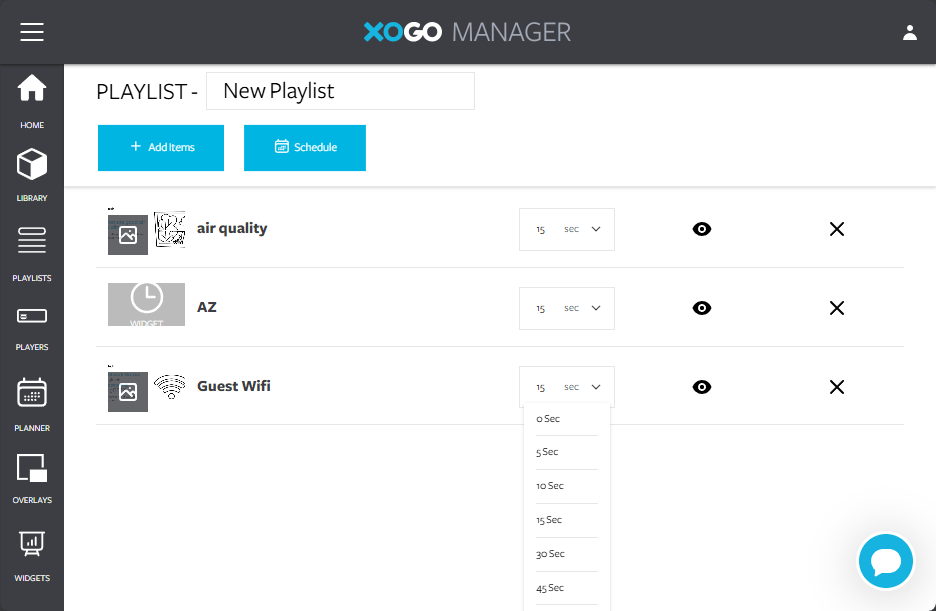
This creates the playlist. From the next screen you can make assets visible or hidden, remove them, or adjust how long to show them while the playlist plays.
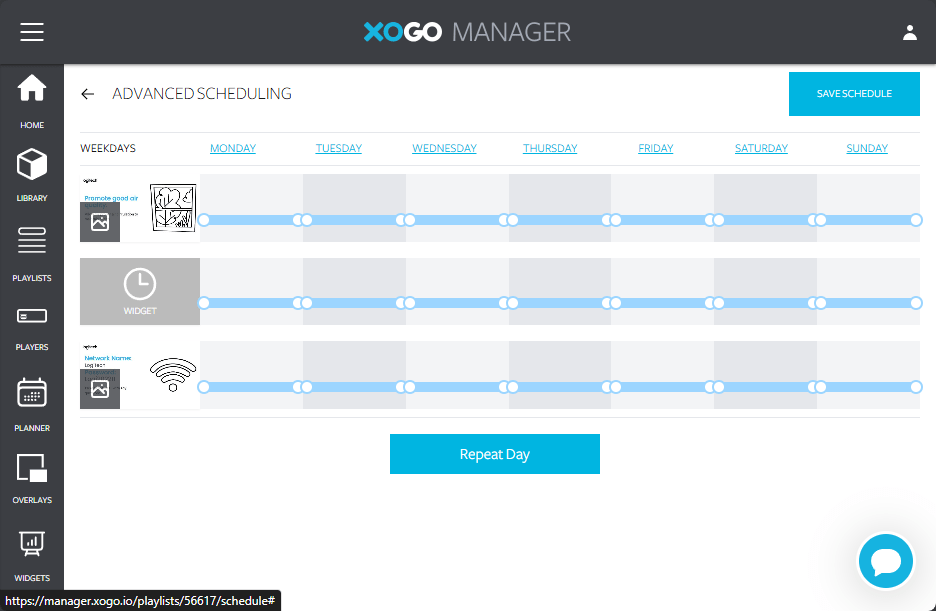
After this you can add scheduling for each asset in the playlist. For instance, you might want a specific asset to only play first thing in the morning or only on Friday. When you’re done hit save schedule, or go back
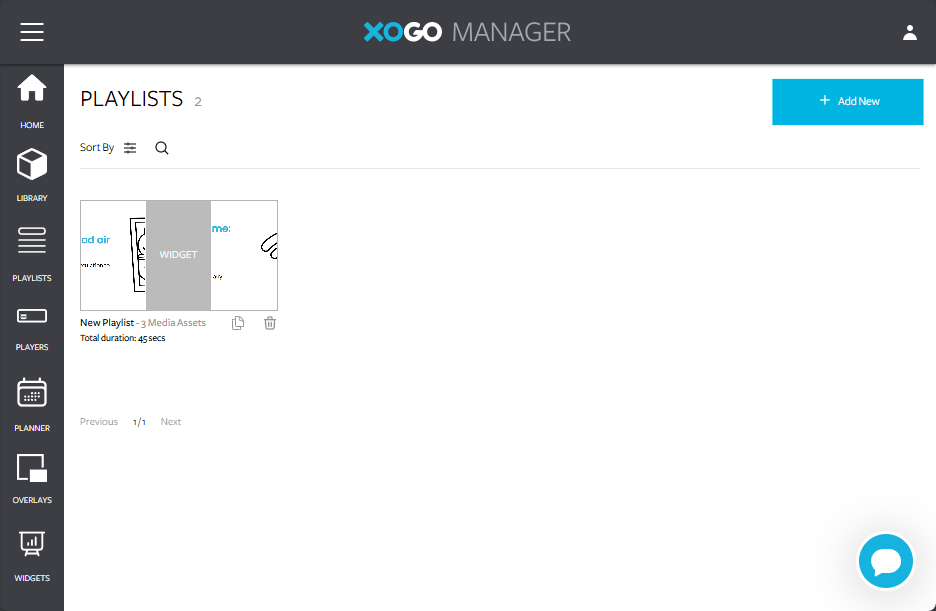
Now you’ll see the playlist in your list of playlists. It shows the total duration and number of assets.
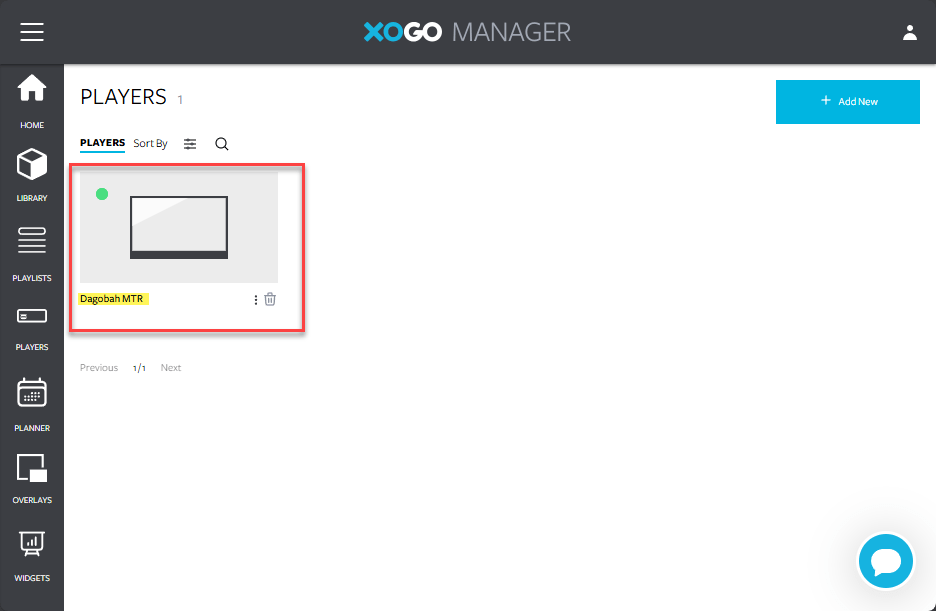
Once you have your playlist you need to assign it to a player. In Manager, go to Players.
If you added the player through the Teams integration using the integration ID, and assigned it to a room in PMP you will see the player listed here along with the room name. If you only added XOGO as a signage source but haven’t assigned it to a room you’ll see the player, but without the room name.
At this point there is a playlist and a player. You need to assign the playlist to the player. Open up the player to edit the details.

Select the playlist

and hit save
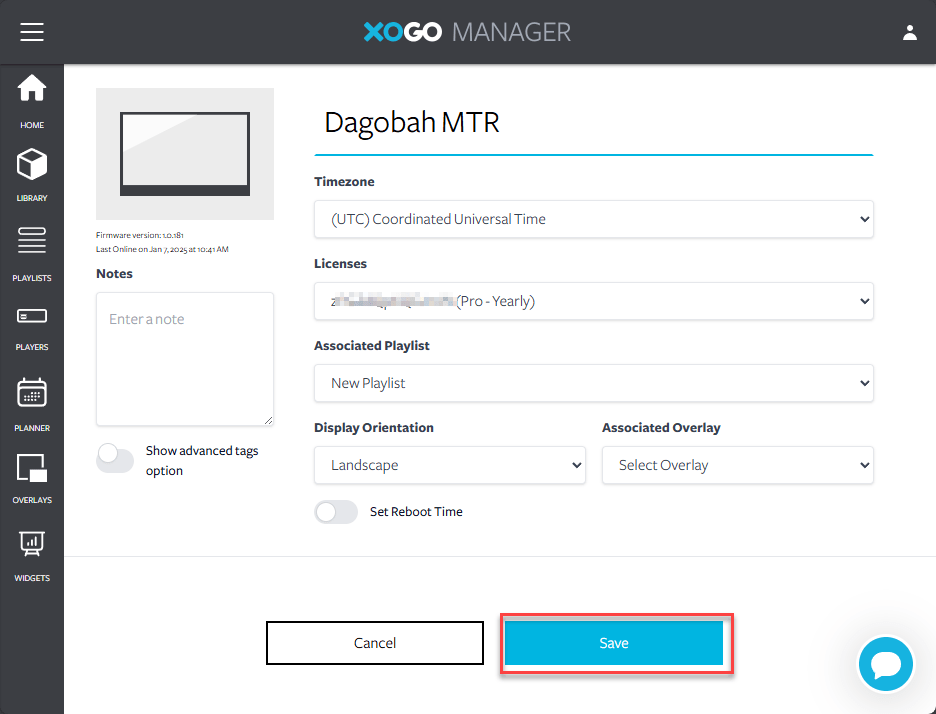
Once you save, the playlist will download to the player app installed on the Teams Room and after a minute the content will start playing.
Apart from that you can also use the planner to make further scheduled for your playlists
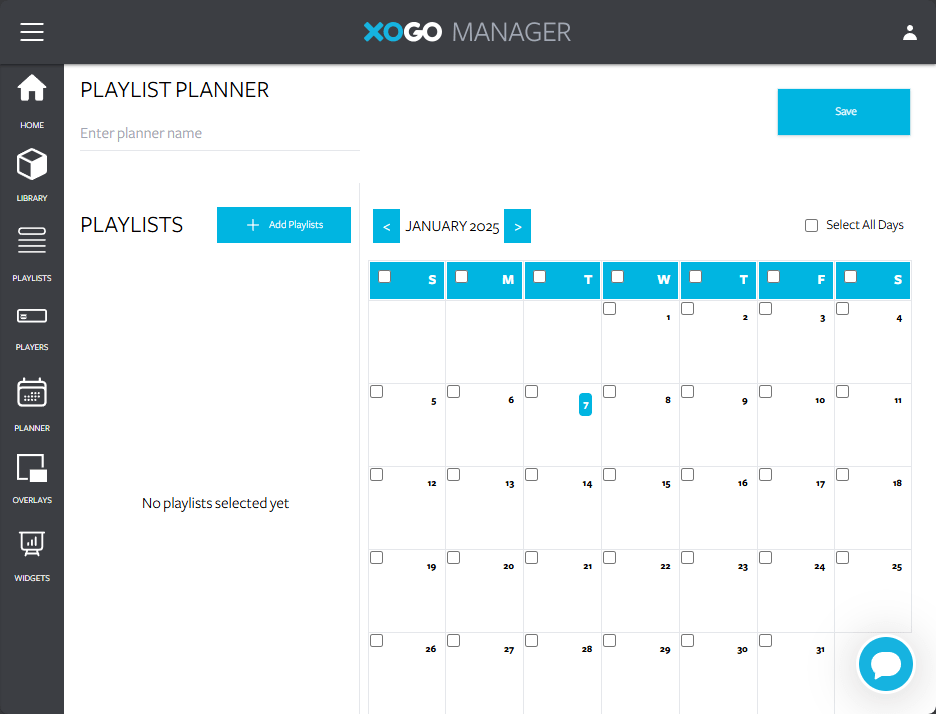
And that’s it. Once I got my Pro license trial I was able to create all of this in a matter of minutes. The most time consuming part is the design of the assets which you’d need to do anyway.
Wrap up
I think you’ll agree that this is all super simple stuff. XOGO is all about creating digital signage. They don’t have a a bunch of extra services like room booking. But they don’t need to. They focus on one thing and do it well.
Once again I want to thank XOGO for the use of a Pro license to test everything out and allowing me to write the review, and for the support so far. You can reach out to XOGO through their website. I put a bunch of links below.
Thanks for reading
More information
- XOGO home page: https://www.xogo.io/
- XOGO Youtube channel: https://www.youtube.com/@xogodecisionsignage9841
- XOGO Manager: https://manager.xogo.io/
- XOGO Admin: https://admin.xogo.io/
- FAQ: https://xogo.happyfox.com/kb/section/2/
- Reseller enquiries: https://www.xogo.io/resellers
Discover more from
Subscribe to get the latest posts sent to your email.

Thanks for the detailed write-up Randy! We’re thrilled to have XOGO live in MTR and can’t wait to see what customers will do with it.
-Justin (Chief Revenue Officer at XOGO)
LikeLiked by 1 person