
Hello Readers, hope you’re well.
Microsoft finally released a much anticipated feature for Microsoft Teams Rooms. Digital Signage is now available on Microsoft Teams Rooms on Windows.
Of course, I would be remiss if I didn’t say what they actually released is a way to display dynamic content on MTR on Windows. Digital Signage is really just the ability to customise the room displays. We’ve had the ability to do that for years on Windows based Teams rooms and several months for Android based Teams Rooms with custom backgrounds. A custom background is a form of static digital signage, is it not? My rooms at home are really just a way for me to display sci-fi pictures relating to the room account name on the room displays and touch consoles. But for businesses its all about branding and information sharing. I’ve seen corproate colours, logos, product placement and a lot of information sharing either on the display, like for a help email help@domain.com, or with QR codes that go to Intranet sites, or even some on screen user guides.
Anyway, enough about that and more about what actually launched.
What’s new?

Microsoft has given admins the ability to display dynamic content on the front of room displays of your Microsoft Teams Rooms in the form of digital signage.

As it says here, you can configure tenant-wide and room specific settings to connect to digital signage services from signage providers Appspace and XOGO, or use a web URL as content, all from the Teams Rooms Pro Management Portal.
How do you do it?
It is super simple to do.
Start with permissions. You need either Microsoft 365 Global Admin or the Teams Rooms Pro Manager role to configure digital signage.
If you have permissions, start in the PMP here https://portal.rooms.microsoft.com/ and expand Settings and click on Digital Signage

You should have a blank slate like this. Toggle Digital Signage to On

Click on Add Source to add a source

Give your source a unique name

Then choose the provider of the source. Right now that is Custom (web URL), Appspace or XOGO. I have heard more providers will be added in time.
Appspace
Appspace have a one device free licensing tier which I used for my initial testing. I also have access to a licensed Appspace tenant which has a few more features and also gives you additional device licenses. But either will work.
To add an MTR device open up your Appspace cloud portal and click on devices
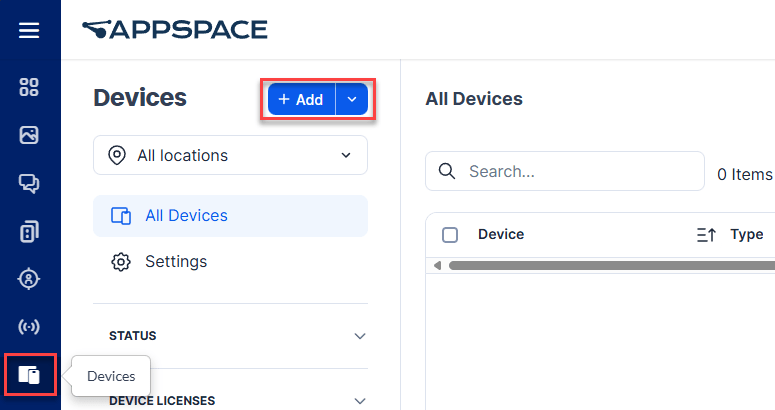
- In the Register new device page click on advanced device registration below the form
- Expand Deployment Method
- Choose Microsoft Teams Rooms. This will generate an Integration ID
- Copy the Integration ID

Back to PMP. Now choose Appspace as the provider

Paste that ID into the Integration ID box and click validate. You’ll get a check mark once it is validated

After that you acknowledge some terms and enter your email address. Then review and finish, click submit.

XOGO
I wrote a follow up post on XOGO here
https://ucstatus.com/2025/01/07/xogo-digital-signage-for-microsoft-teams-rooms/
XOGO is all the same on the PMP side, so I’ll show you the XOGO side and what it looks like in PMP. Start with the add source again, and choose XOGO as the provider.

- In XOGO Manager https://manager.xogo.io/ click on the person icon in the top right
- open your company profile
- go to the Company tab
- In the lower half of the screen you’ll see “For Microsoft Teams Customers”. Click Generate Integration ID
- Copy the ID below that box

6. and paste it into the PMP form and click validate

After that you acknowledge some terms and enter your email address. Then review and finish, click submit.
Custom
Web URL might sound like an easy place to start but there are rules. This is from the docs page…
If you don’t use any of the supported third party providers, you can set web URLs as a signage source. To ensure the web application loads successfully on your Teams Rooms device, the URL must meet the following requirements:
- Has a valid web URL format.
- Begins with “https”.
- Accessible within a browser InPrivate window without requiring authentication or permission from the resource account.
- Loads within an iframe that runs in sandbox=”allow-scripts allow-same-origin” environment. For more information, see CSP: frame-ancestors – HTTP | MDN (mozilla.org).
…and you can’t use a SharePoint or OneDrive URL either.
I tried a page from my blog and that worked. I guess it confirmed to the rules, but it definitely wasn’t great as digital signage. One thought I had was to use an Appspace playlist I had created, publish it to the web and use the URL. That’s not allowed though because Appspace require each MTR to be registered as a device to consume a license. XOGO doesn’t have a way to publish a playlist to a Web URL. So I performed a web search and found a provider who actually published a help article on how to use their service with the custom URL for MTR. They are called Vibe.fyi and their article is here Setup Guide – Microsoft Teams Room (MTR).
The signage content
You’ll of course need some content for any one of these. I’ll do some separate posts and a video or three on how to do it in each of the providers portals.
Assigning a source to rooms
This part is pretty simple but I’ll walk you through it.
Firstly, if you only have one provider or source you can set it as the default for the tenant at the time of source creation. Just tick the box.

You can also choose a source after you’ve created one or more and set it as the default

Setting the default doesn’t auto assign it to rooms. It sets a flag as to the default in your tenant. It also gets chosen by default when you enable signage at the room level. So lets start there…
Enabling Digital Signage by room
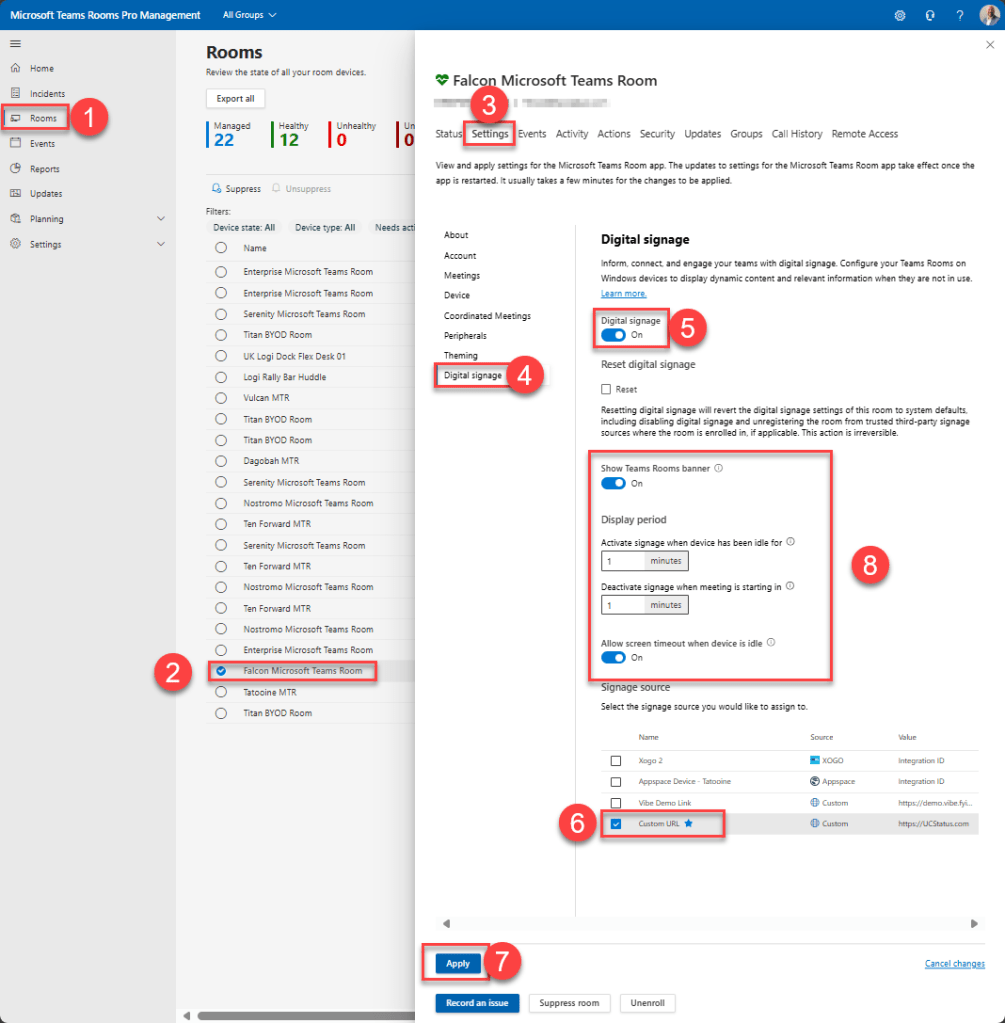
- In PMP Click on rooms
- Choose the room
- Click on the settings tab
- Click on Digital Signage
- Enable Digital Signage
- Configure Signage options
- You can choose to show/hide the Teams Room banner. I like to show it
- The time after idle that the signage kicks in
- If you want to deactivate signage before a meeting starts
- Allow screen timeout when the screen is idle. This allows the display to go off for power savings.
- Stay with the default source or choose one of the others
- Click Apply
9. Choose to either apply it now or during a maintenance window

Apply during the maintenance window will literally apply it that evening during the default scheduled task where the device checks for and installs Windows updates and Teams app updates etc. If you have really busy rooms and you’re making these changes to digital signage during the day, this might be the choice for you. You’ll see the digital signage on the room(s) you selected in the morning.
If, however, you are testing or know you can momentarily take a room out of commission to get digital signage working, choose apply now.

Once you hit submit you can watch the progress go from 0 out of 1 rooms processed to 1 out of 1 rooms processed. Or you can hit skip and close

This option doesn’t restart the running PC, but it does stop the MTR app and restart that. The whole process takes maybe 5 minutes in my testing. Both the touch console and front of room display go black, then the Teams logo, then back to a healthy state. After a minute or so the digital signage you have selected will start playing.
Assigning to rooms from the source
This option is better if you want to enable a bunch of rooms in bulk.
Expand settings and click on digital signage to show your source list. Select one source and click assign to rooms

confirm your source selection and hit next

Make any preference changes if you want

Now to select the rooms. You can type to search and add multiple rooms. Or use the drop down to select a room from the list if you don’t have that many rooms
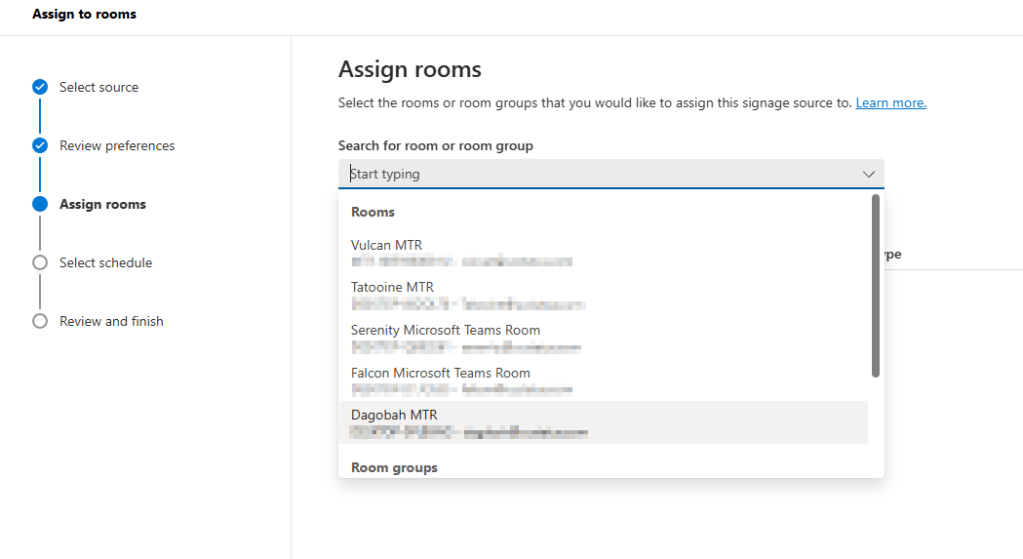
Or you can select a group you have created in the Pro Management Portal
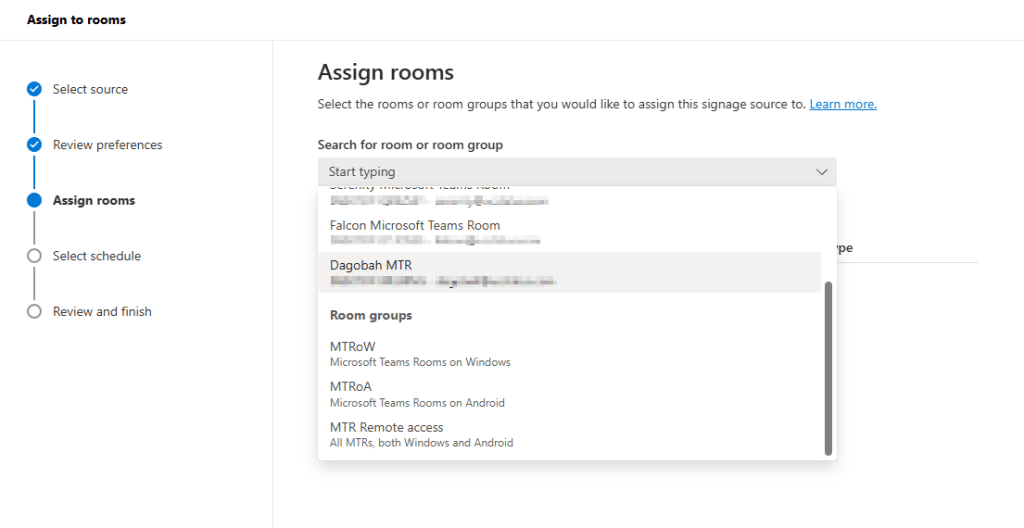
once you have selected all your rooms or groups of rooms hit next again

Choose apply now or during maintenance window. If you are doing a lot of rooms at once I would choose during maintenance window. Your choice. Hit next again

review and finish or make changes. Then hit submit

What does it look like when digital signage is playing?
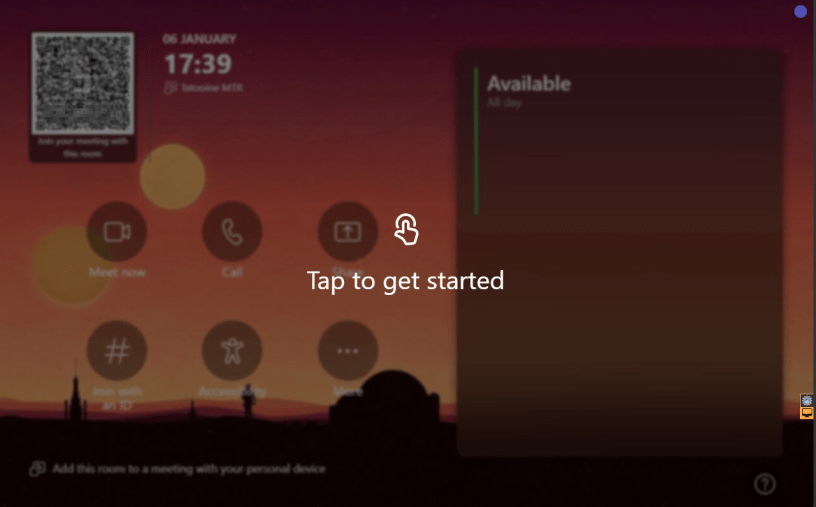
The cool thing is the touch console gets a pulsing overlay to Tap to get started. The Front of room display shows the content along with a Teams room banner if you have chosen to show that.
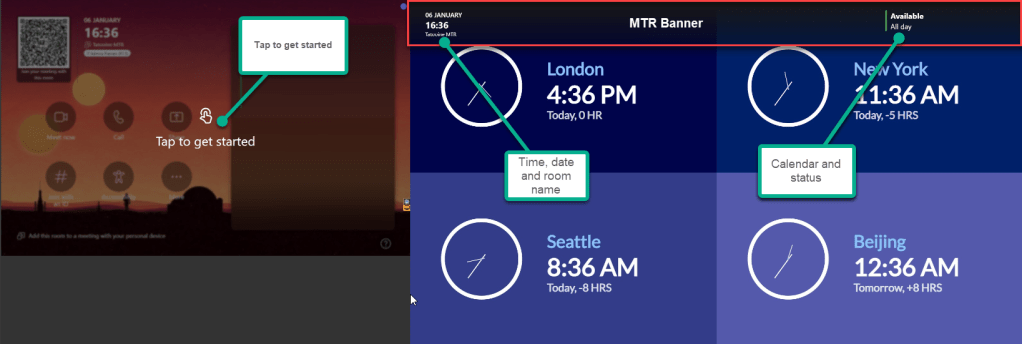
Having the tap to get started overlay means that the device will still play the digital signage while you are in the room which is exactly when you want to see the signage. This means the PIR sensor on your touch console won’t trigger the signage to stop playing.
However, if you have your room set to make your display sleep, both the touch console and room display will go black when you aren’t in the room. As soon as you are seen by the PIR sensor the console and display light up and show tap to get started and digital signage respectively.
Wrap up
As I said st the start, this is a much anticipated feature. Other platforms have digital signage built in which means you can just add content directly and have it play on the device. They also have options, like MTR, to use a URL. This means you can develop content in a more feature rich platform.
Digital Signage currently works on MTR on Windows devices and of cource you need the pro license. Microsoft has confirmed that digital signage is coming to Android rooms in the first quarter of 2025. This wouldbe great if true because we often have to wait much longer for features to cross over between platforms. I’ll update the post when they do add it. I’ll also likely create a new post if there are any big changes to the way it is done on Android. If not and the options are simple I might just add it here and re-share.
That’s all folks. Thanks for reading.
Discover more from
Subscribe to get the latest posts sent to your email.

Hello Randy !
Great report and guide, thank you!
Your content about MS Teams and MTR is always great.
Just one comment. For non-native speakers of English, hearing to the podcast chats with your colleagues is a bit difficult (by the way, your speech is the clearest ! ð). So receiving written material is always welcome. Thanks again for making the MTR world easierâ¦
Kind regards,
Gustavo
Gustavo GarcÃa
Product Manager
Commlogik Argentina S.A.
Tel +54 (11) 5365-5248
http://www.commlogik.com.arhttp://www.commlogik.com.ar/
[logo]
LikeLiked by 1 person
Thanks for the kind words. I’ll tell my co hosts to speak more clearly.
LikeLike